Hotel Agent is a digital-employee workspace for hotel teams. It brings OTA back-office browsing, read-only Ctrip, Meituan, Booking.com and PMS queries, business data interpretation, quality checks, smart replies and pricing suggestions into one clear desktop application.
Hotel operations usually involve too many platforms, repeated checks and scattered follow-ups. Hotel Agent keeps these workflows in one place so operators can ask questions, analyse data, generate responses and track execution with natural language.
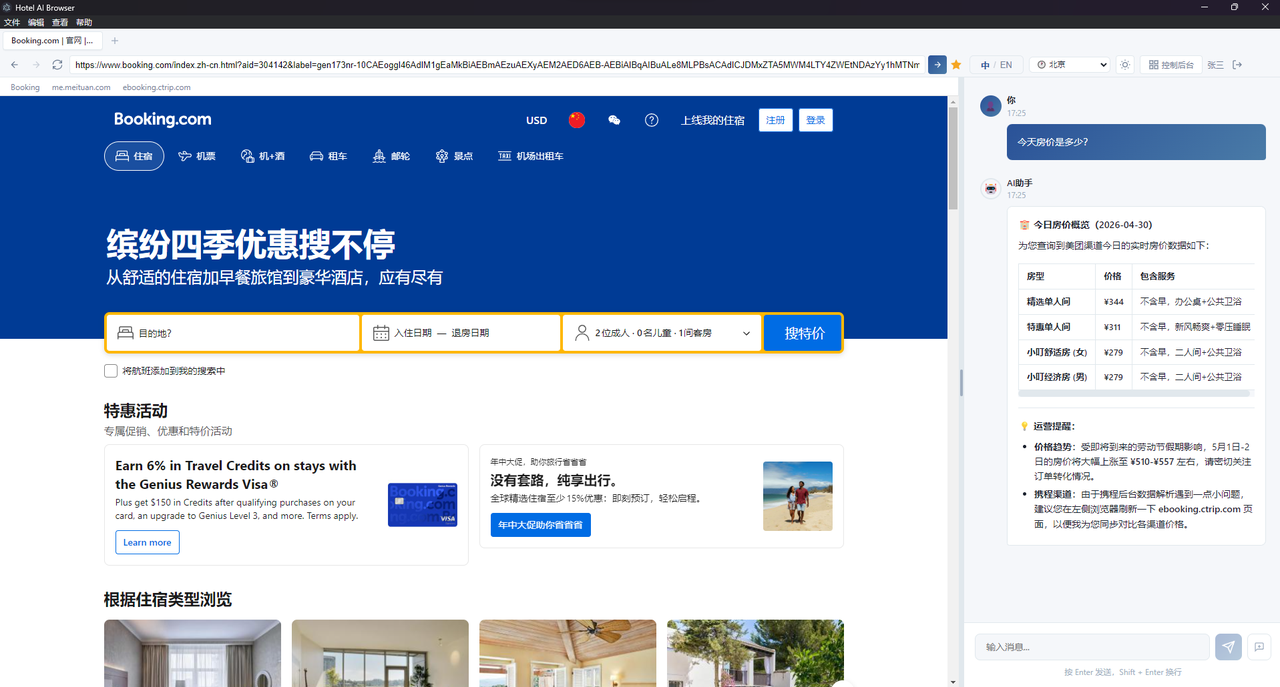
WorkflowUse business pages on the left and AI support on the right
Sign in to platforms such as Trip.com, Meituan, Booking.com and Ctrip in the browser, then ask the AI assistant for help.
Business LoopFrom data observation to operational action
The system combines the current page, hotel settings and platform data to produce confirmable analysis, suggestions, draft replies or quality-check results.
TeamsSuitable for single-property and multi-property operations
Front-desk and operations users can handle daily tasks, while headquarters can publish checks, follow up execution and review results.
One workspace
Browser, AI assistant, dashboards, quality tasks and automated collection live in the same application.
Digital employee teamwork
Hotel Agent selects the relevant role and skills for data queries, analysis or reply drafting.
Read-only queries first
Ctrip, Meituan, Booking.com and PMS query workflows do not modify operational data.
Traceable execution
Plans, skill status and outcomes are recorded so running work can be followed, cancelled and diagnosed.
Operational Loop
Sign inDetect hotel and pageCollect dataGenerate adviceConfirmExecute and track
Common Use Cases
Revenue management
Combine own inventory, own rates, competitor rates and date trends to support more confident pricing decisions.
Channel operations
Review and manage prices, inventory, reviews and messages across Trip.com, Meituan, Booking.com and other platforms.
Competitor monitoring
Maintain nearby competitor hotels and monitor public rates and market changes.
Store management
Assign quality-check tasks to properties and review submitted evidence in one place.
Download & Install
Download the official package for your computer. After installation, open Hotel Agent and complete the first setup flow.
Windows Package
For Windows computers used by hotel operations teams.
Before using Hotel Agent in daily operations, prepare your computer, network, platform accounts and internal approval process.
Item
Notes
Computer and network
Use a stable network that can access OTA platforms and AI services.
Platform accounts
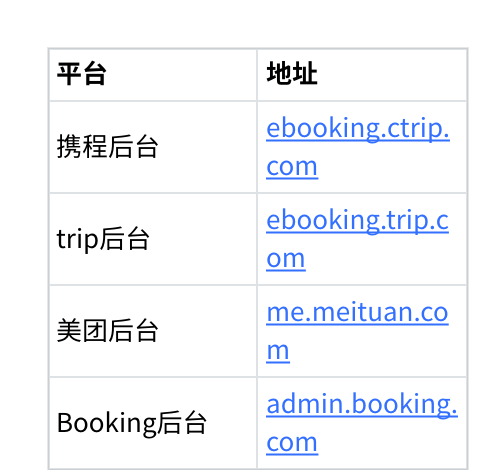
Prepare the business back-office accounts your hotel uses, such as Trip.com, Meituan, Booking.com or Ctrip.
Account permissions
Recommended permissions include viewing rates, inventory, orders, reviews, messages and pricing tools.
Internal workflow
Clarify who confirms price changes, reply wording, quality-check approvals and exception handling.
Example platform entry points. Use your existing hotel accounts when signing in.
First Setup
Complete the minimum setup first, then add room-type standards and data channels as needed. Once configured, Hotel Agent can query data, analyse competitors and support daily operational work.
1
Enter hotel information
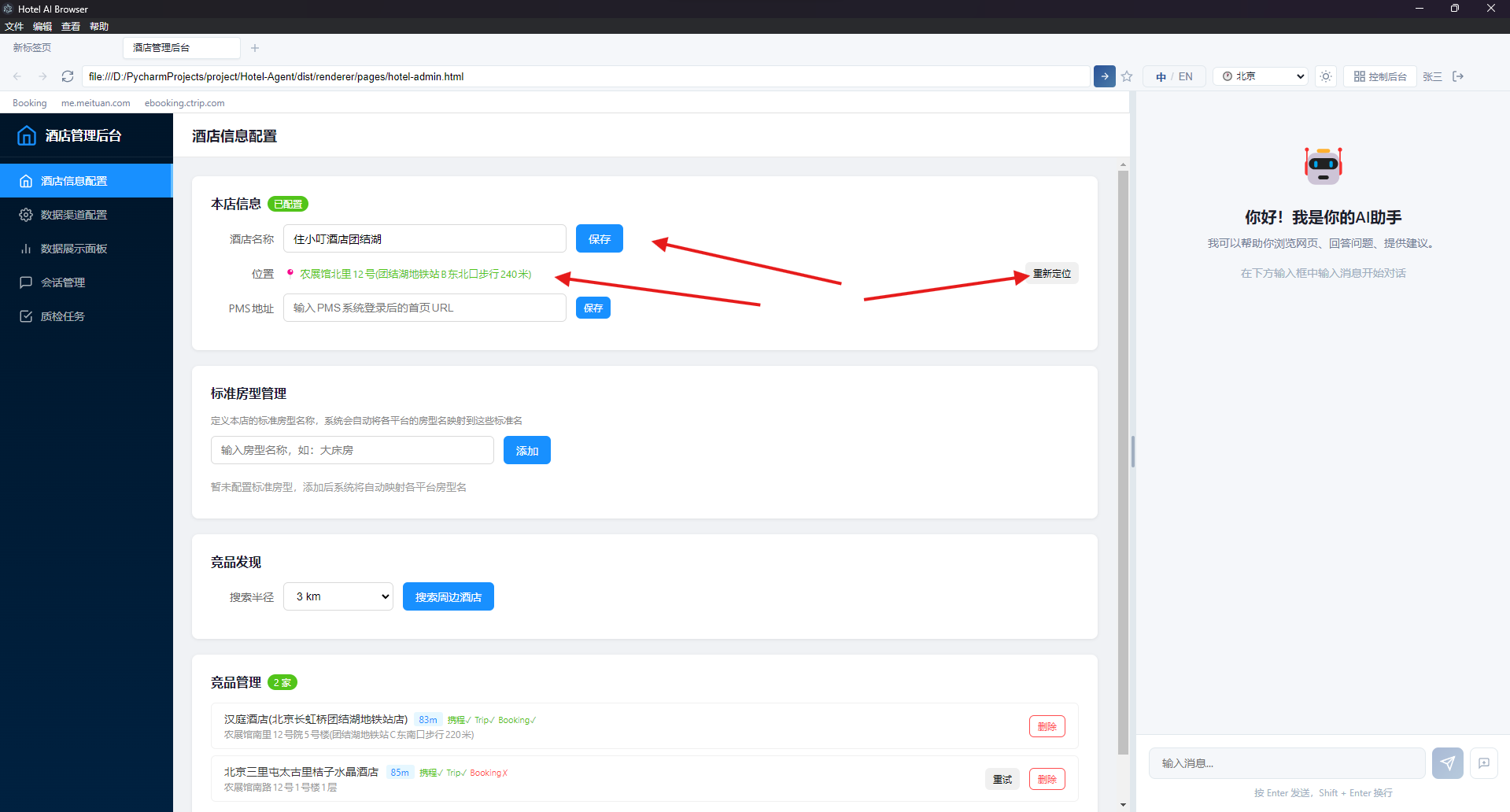
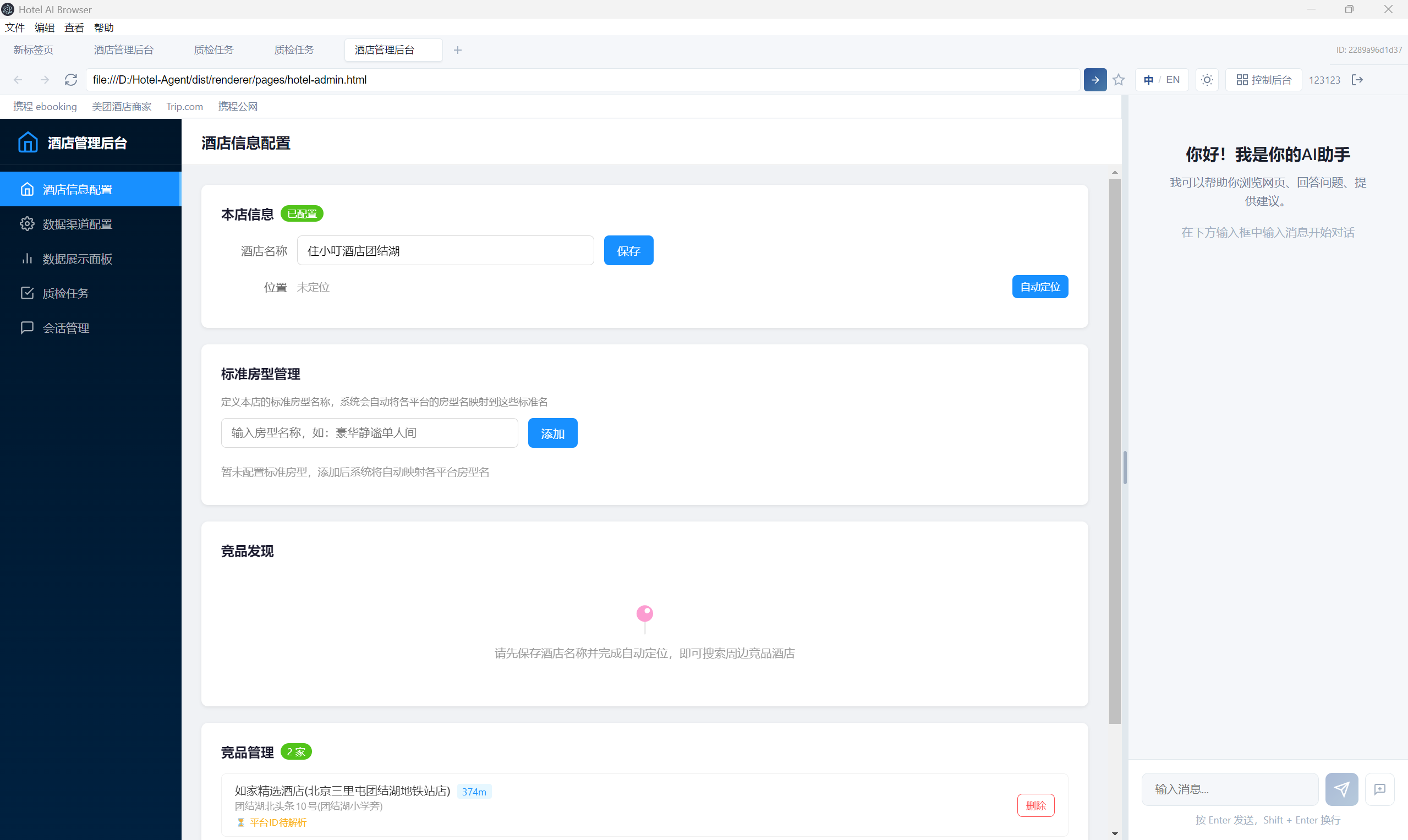
Open the admin console, enter the full hotel name and save it. Then use automatic positioning and confirm that the map location is correct.
Hotel information helps the system recognise the current property for competitor analysis and data queries.
2
Set the time zone
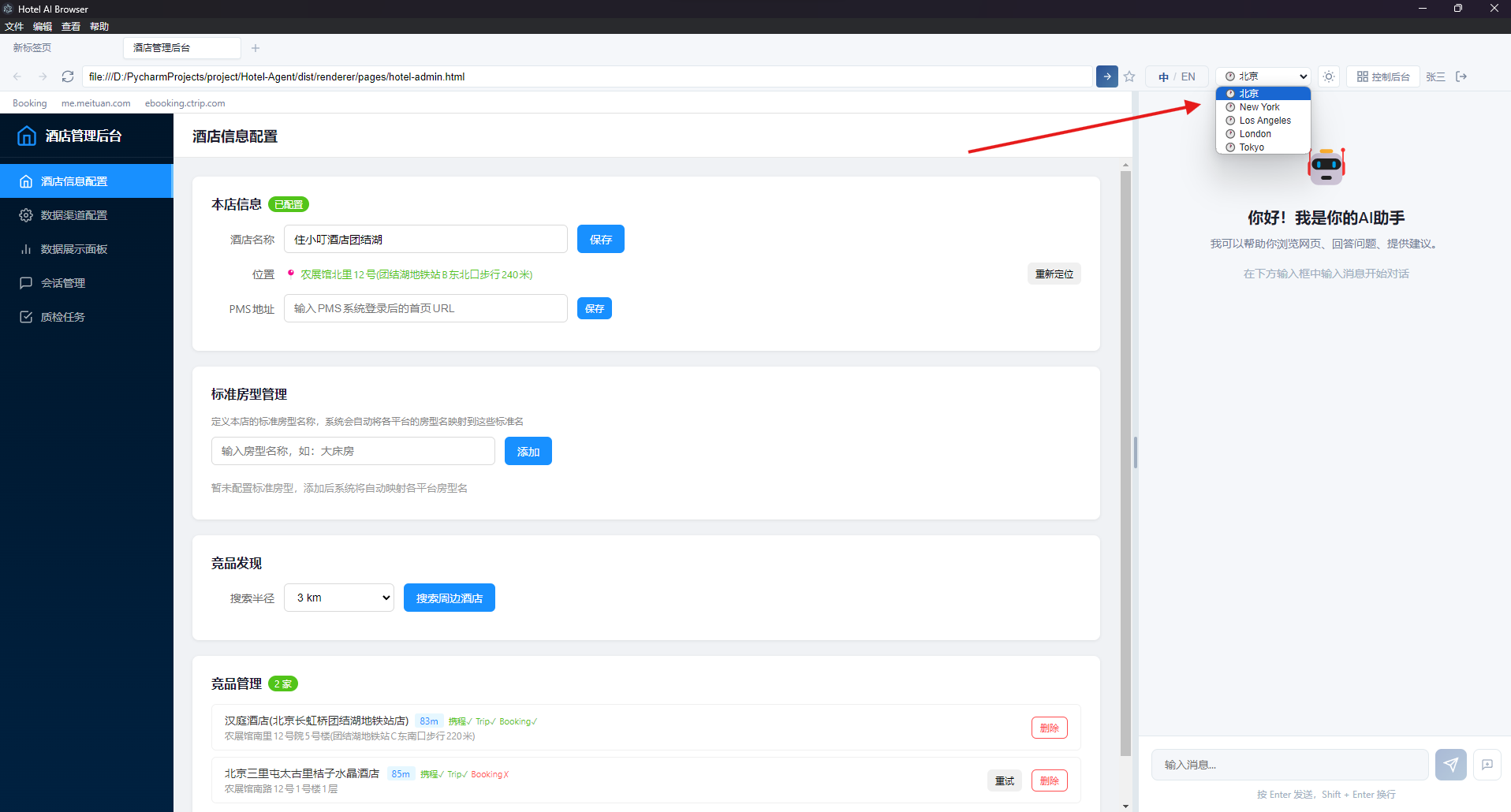
If your property is outside mainland China, switch the time zone to the hotel's local time. Singapore hotels should use Singapore Time.
Using the hotel’s local time reduces date and deadline misunderstandings.
3
Sign in to OTA platforms
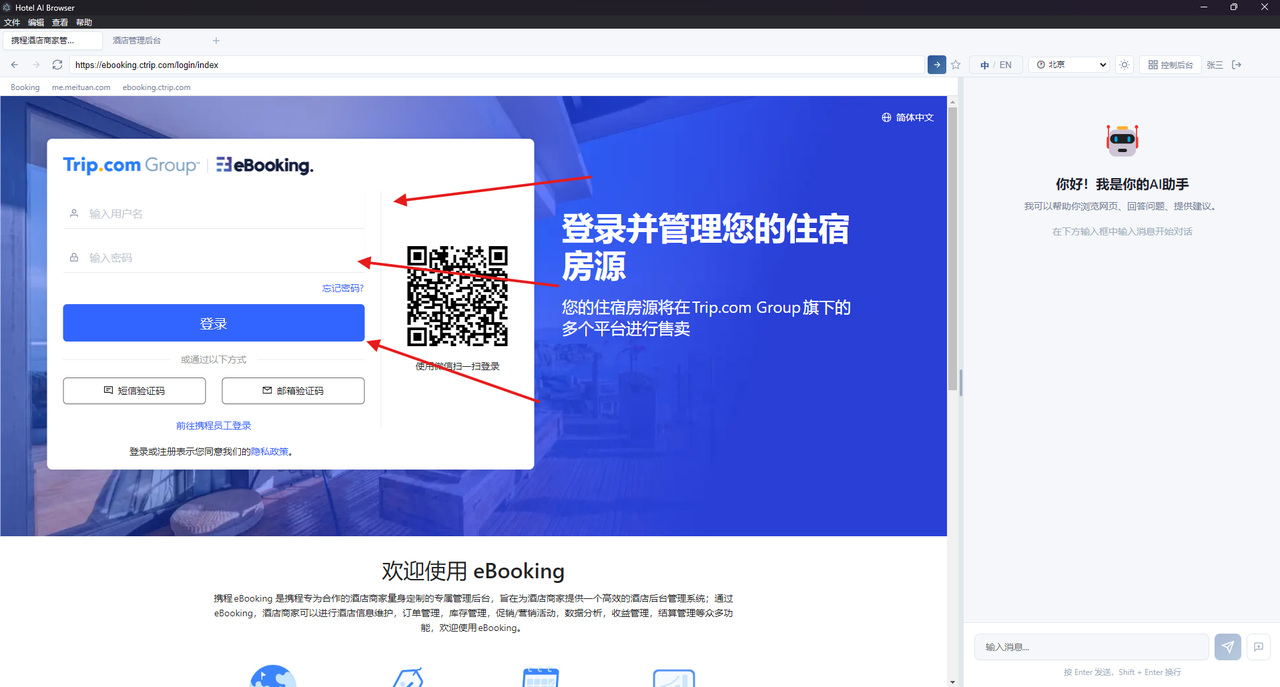
Sign in to your common merchant back offices in the left browser. Sign in to at least one platform; more signed-in platforms unlock more scenarios.
Keep the page open after sign-in so the AI assistant can use the current page context.
4
Add competitors
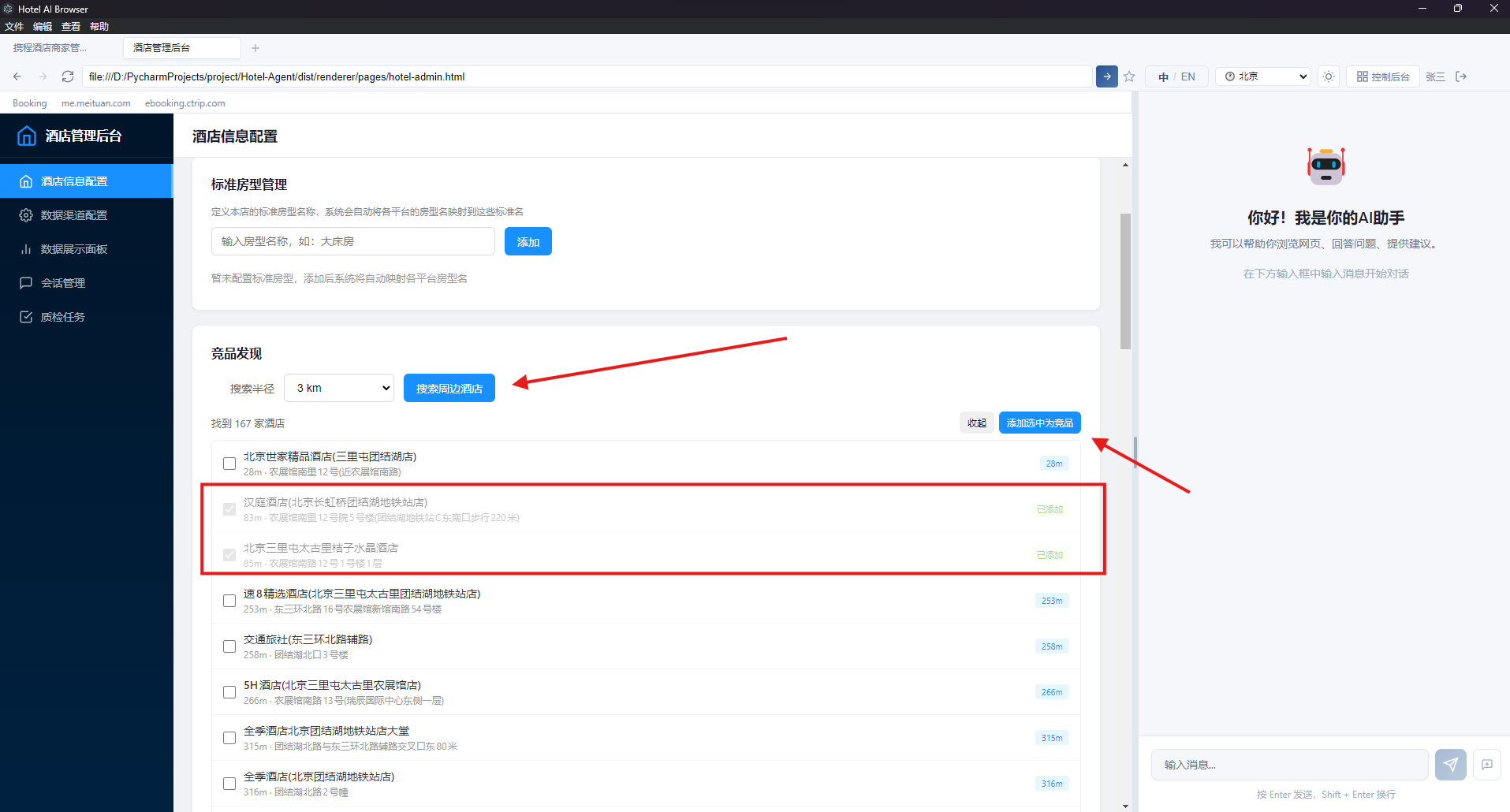
Open competitor management in the admin console. After positioning your hotel, search nearby hotels and add the relevant competitors.
Select nearby hotels and add them to the competitor list.
Recommended Additional Settings
Standard room types
Create standard room types so different OTA room names can be mapped to a consistent property-level view.
Data channels
Enable the platforms you want to collect from. Scheduled collection is useful for daily checks, reports and competitor monitoring.
Collection frequency
Own rates and inventory can be collected more frequently, while competitor rates can usually use a lower frequency.
Login status
Back-office channels rely on the browser login session. Sign in again if the platform session expires.
Daily Use
After the first setup, open and sign in to the relevant business page on the left, choose a digital employee on the right, then type your operational request.
The AI assistant returns query results, reminders or suggestions based on the current page and business data.
Example prompts
Check Ctrip back-office rates for the next seven days.Check current Meituan rates and availability.Analyse this week's rates using Booking.com and PMS data.Prepare a pricing recommendation for review.Draft a review reply for me.
Open the review page before asking for a reply.For reviews or messages, open the relevant page in the left browser first, then ask the AI assistant to generate a draft.
Core Features
Different features require different preparation. Use this list to check whether your setup is ready.
Feature
Required preparation
Rate and inventory queries
Enter hotel information and sign in to the relevant OTA back office.
Occupancy and trend analysis
Use an account that can view inventory, orders or availability data.
Competitor price comparison
Position your hotel, add competitors and sign in to the relevant platform.
Smart pricing
Confirm that the account can view and modify prices. Operators review before submitting.
Review replies
Open the review, comment or message page in the left browser first.
Scheduled collection
Enable scheduled tasks in the admin console data-channel settings.
Quality-check tasks
Create tasks in the hotel admin console and send the submission link to store staff.
AI Browser
The AI Browser hosts the OTA and business pages needed for daily hotel operations. Operators can sign in, view rates and inventory, handle reviews and use merchant back offices on the left while the AI assistant uses the page context on the right.
Best for: platform login, back-office browsing and page-aware analysisValue: reduces switching between systems and manual copy-paste
Digital Employees
Ask natural-language questions about rates, inventory, occupancy, competitor trends, pricing recommendations, review replies or operational reminders. Hotel Agent selects the relevant employee role and skills, while hotels can configure which employees and capabilities are available.
Best for: queries, explanations, summaries and multi-step workValue: organises specialist capabilities into traceable operational steps
Smart Pricing
Smart pricing combines own inventory, own rates, competitor rates and recent trends to produce date-level, room-type-level recommendations with reasoning and risk notes.
Best for: weekends, public holidays and tight-inventory datesValue: makes pricing decisions easier to explain and review
Smart Replies
Smart replies generate professional drafts for reviews, guest complaints, enquiries and platform messages. Operators review and copy the final wording.
Best for: review replies, complaint handling and guest enquiriesValue: improves speed while keeping response tone consistent
Scheduled Collection
For data that needs repeated checks, enable scheduled platform tasks in the admin console. Hotel Agent can then collect rates, inventory, competitor data and exceptions at configured times.
Best for: daily checks, competitor monitoring and operations reportsValue: reduces repetitive manual checks and improves continuity
Quality Checks
The quality-check system includes an admin side for publishing and reviewing tasks, plus a mobile submission side for store staff to complete checks and upload evidence.
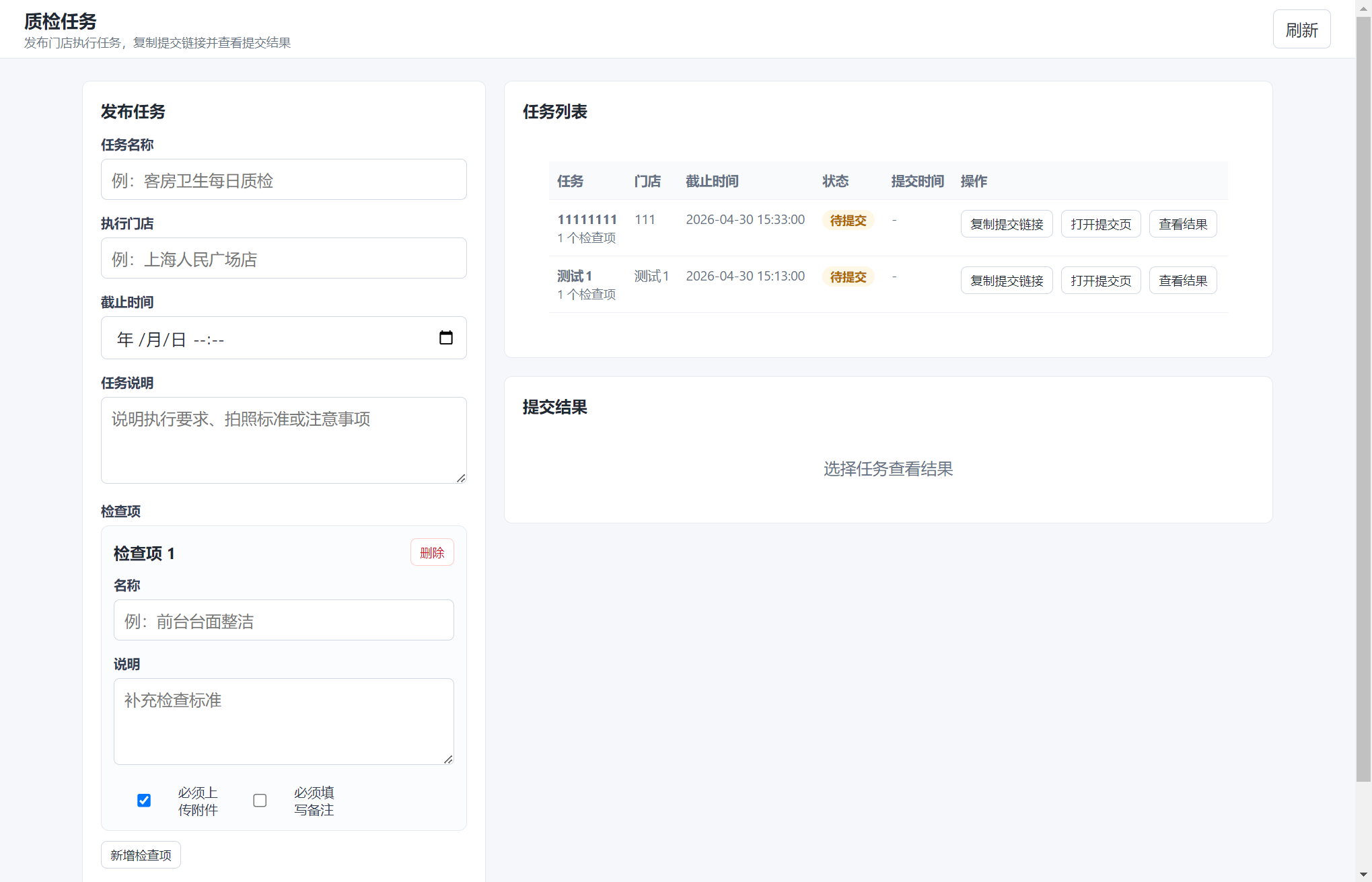
The quality-check entry is available in the hotel admin console.
Publish tasks
Create a task with target stores, deadline, instructions, check items and submission requirements.
Track progress
Review task status, completion progress, submission time and timeout risk.
Review results
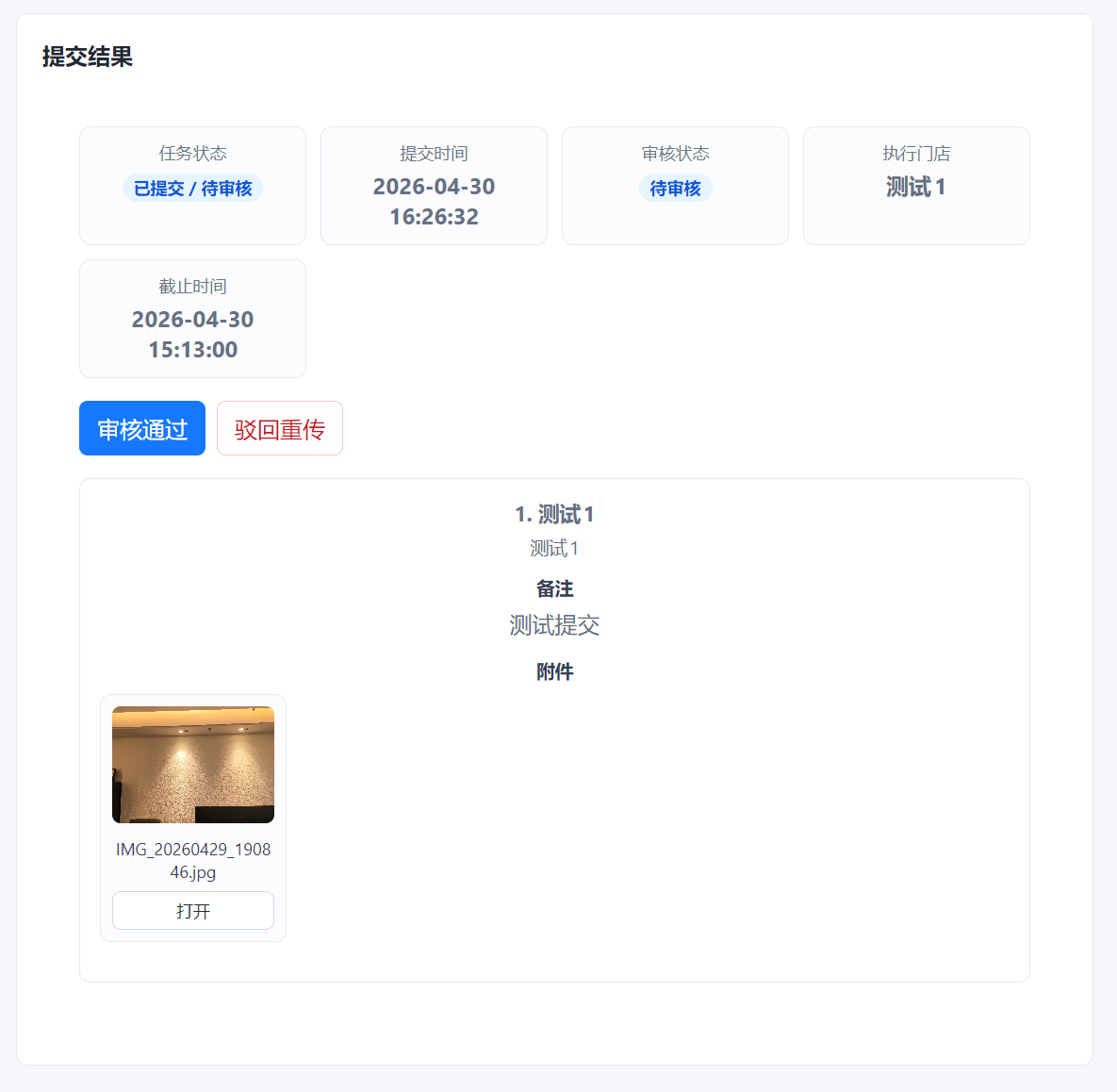
Check submitted content, photos and remarks, then approve or reject for resubmission.
Mobile execution
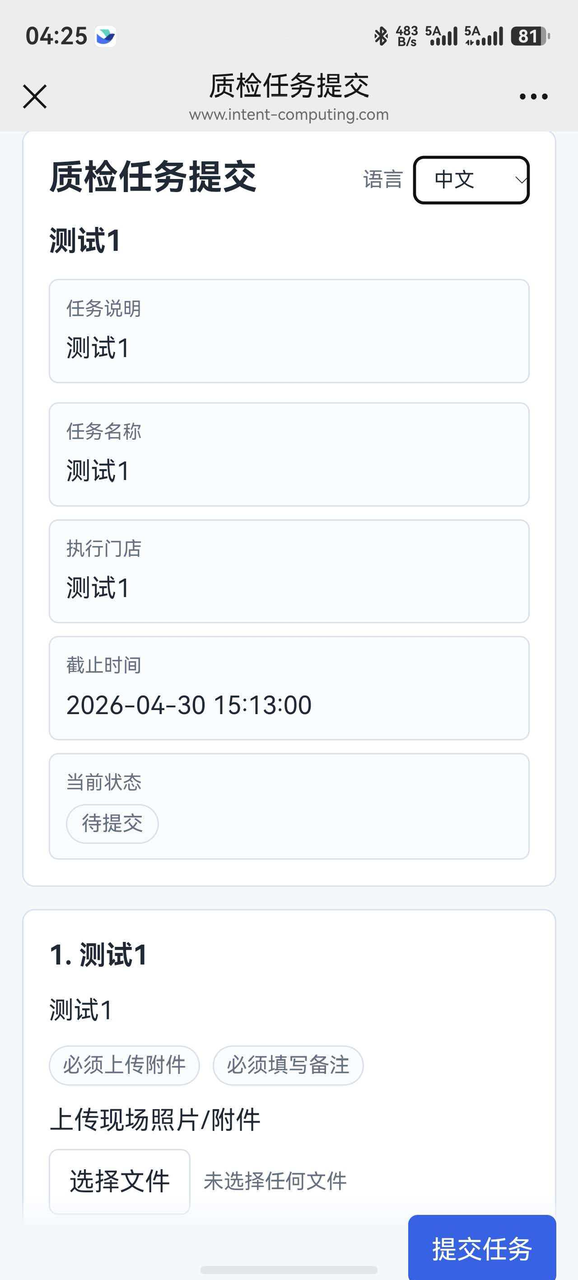
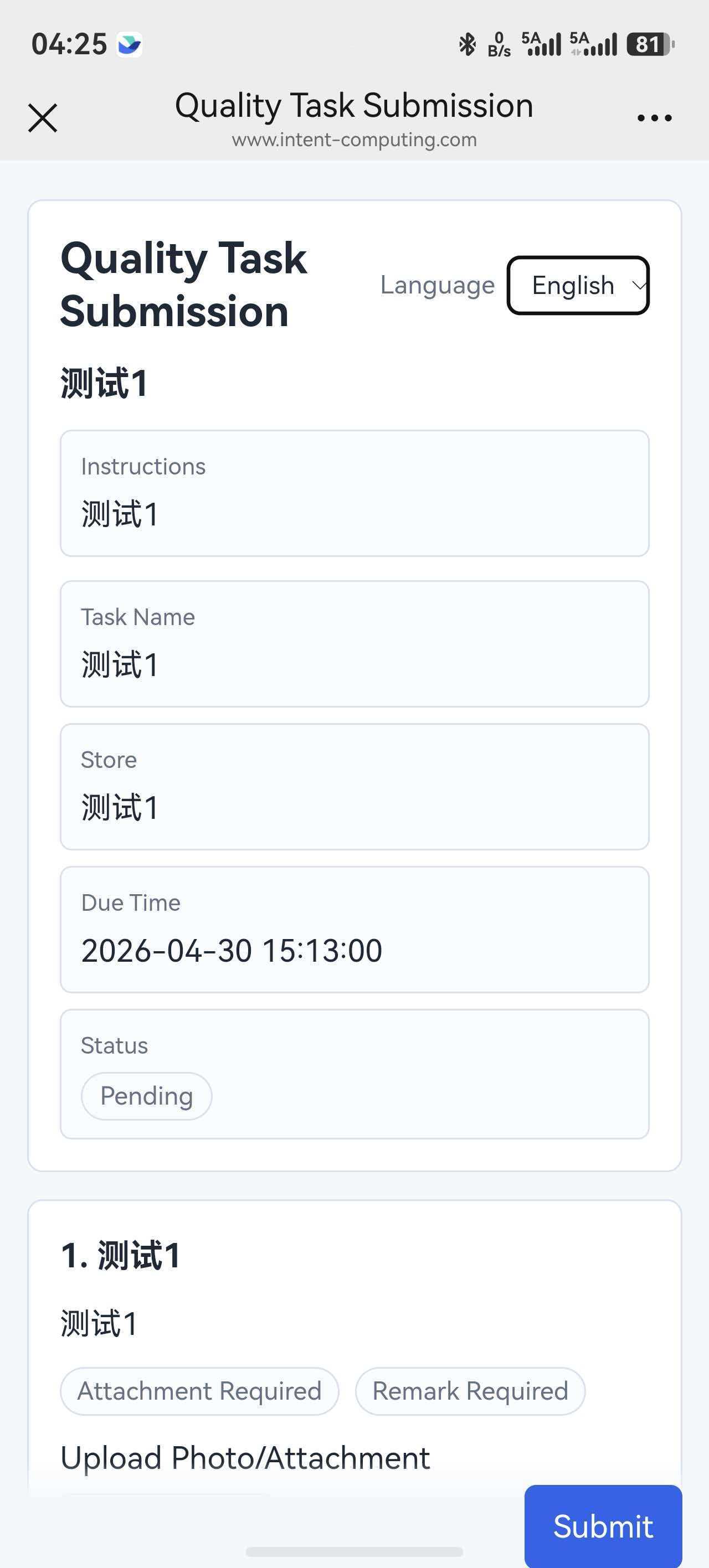
Store staff open the submission link on mobile, upload evidence, add remarks and submit the result.
Admin Console
Managers can publish tasks, view the task list, and open submission or result pages.The review page is used to inspect submitted evidence and request resubmission when needed.
Store Mobile Page
Store staff can open the link on mobile, review the requirements, upload photos or attachments, add remarks and submit the quality-check result. The mobile page supports Chinese and English.
Chinese mobile submission page.English mobile submission page.
FAQ
What should I do if the AI says data retrieval failed?
The most common reason is that the left browser is not signed in, or the login session has expired. Sign in again and retry the task.
What should I do if competitor data is unavailable?
Add competitors in the admin console first, then make sure the relevant platform account is signed in.
How do I enable automatic data collection?
Open data-channel settings in the admin console and enable scheduled tasks for the platforms you need.
What if a quality-check result does not meet requirements?
Enter the rejection reason on the review page and return the task for resubmission. Store staff can then add photos, attachments or remarks.